
Identify frequent issues affecting wireless mice and computer peripherals. Learn symptoms, root causes, inspection tips, and advice on replacing versus repairing. Get South African-centric buying guidance and essential…
What you need to know
Frequent wireless mouse issues include connectivity dropouts, erratic pointer movement, unresponsive clicks, and rapid battery drain. Physical inspection, compatibility checks, and confirming hardware faults before replacement are critical. If symptoms persist after basic troubleshooting, it's safer to replace the device rather than risk productivity loss.
What you should know about Computer Peripheral or Wireless Mouse
Frequent wireless mouse issues include connectivity dropouts, erratic pointer movement, unresponsive clicks, and rapid battery drain. Physical inspection, compatibility checks, and confirming hardware faults before replacement are critical. If symptoms persist after basic troubleshooting, it's safer to replace the device rather than risk productivity loss.
Fitment checks before you buy
What affects the price
Common buying mistakes
Live listings in this browse area
Recognising Symptoms of Faulty Computer Peripherals or Wireless Mice
Usually, failing wireless mice or computer peripheral issues show up as erratic cursor movement, intermittent connectivity, unresponsive buttons, or irregular scrolling. Sluggish or jumpy movement can indicate sensor faults, while complete non-detection points to receiver or wireless signal problems. Unexpected double-clicks, stuck buttons, or rattling noises often flag mechanical failure inside the mouse. If your device consistently drops the connection or won’t pair, there’s likely a signal or compatibility issue to address.
- Erratic pointer behavior
- Repeated connection drops
- Click/scroll wheel not registering
- Sudden battery drain
- Device not recognised by Windows or macOS
Leading Causes: Why Computer Peripherals or Wireless Mice Fail
Common root causes for wireless mouse issues include:
- Sensor Degradation: Dust or debris on the lens, or internal component failure.
- Battery Issues: Leaking, old, or low-capacity batteries cause short run-times or non-functionality.
- Signal Interference: Competing wireless devices, USB 3.0 ports, or metal desks disrupt communication between mouse and receiver.
- Mechanical Wear: Frequent clicking wears out button switches and scroll wheels.
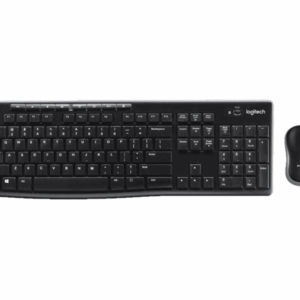
- Receiver Problems: Missing, damaged, or faulty USB receivers can render mouses useless. For combos like the Logitech MK470, receiver pairing is essential.
Physical drops, liquid spills, or outdated firmware are also culprits, especially in older hardware.
What Buyers Should Inspect Before Buying a Used Wireless Mouse in South Africa
Buying used means balancing cost with reliability. Always ask Trade Partners for clear device photos and confirmations of working status. When possible:
- Test mouse on your system for device recognition and stable pairing.
- Examine surface for excessive wear or signs of drops.
- Inspect the battery compartment (look for leaks or corrosion).
- Check all mechanical actions: button presses, scroll wheel, and DPI switch (if present).
- If buying combos (e.g., Logitech MK270), confirm both keyboard and mouse work together.
- Validate compatibility with your OS and USB receiver requirements.
For additional peace of mind, see our Refund & Returns details and use our Request a Part service for harder-to-source items.
When Replacement Is the Safer Option
If basic cleaning and battery swaps fail, consider replacement. Persistent connection drops, unresponsive controls, or mechanical failures usually mean inside components are too worn for reliable repair. Replacements like the Logitech MX Master 4 offer long-term consistency and advanced features. Replacement is always recommended if liquid ingress or circuit damage is suspected, or if Trade Partners have flagged previous repair attempts.
For workplace or office environments, unreliable peripherals quickly cause productivity problems—replacing early is smarter than risking downtime.
- Repeated failures after trying different USB ports
- Device not responding at all, regardless of system
- Noticeable physical damage or missing crucial accessories
Have an old or non-functional mouse? Consider selling your device through Sell Used Parts, or partner with us via our Trade Partner programme.
Used Parts Disclaimer
Used parts can differ by engine code, plugs, mounting points, side, trim level, year range and running changes. Always compare the exact match details before purchase. If the exact item is not listed, use Request a Part so the right option can be sourced.
For policy details, read Refund & Returns. If you want to move stock, see Sell Used Parts or Become a Trade Partner.
Delivery, sourcing and returns
All orders are covered by the Brits Bros Parts Refund & Returns policy. Check eligibility for returns or exchanges before committing to a purchase. Need help? Contact us anytime via the app or request a part service.
Frequently asked questions
What causes frequent disconnections with my wireless mouse?
Frequent signal loss is usually due to low battery power, wireless interference from other devices, or a faulty USB receiver. Try replacing the batteries, using a different USB port (avoid USB 3.0 ports if possible), and moving the receiver closer. If issues persist, the mouse may need replacement.
Is it worth repairing a faulty wireless mouse?
Repairs are rarely cost-effective for wireless mice due to the small, integrated components and low part costs. Replacement—especially with trusted brands like Logitech—is faster and more reliable for both home and office users.
How can I confirm if a used mouse is genuine and not a fake?
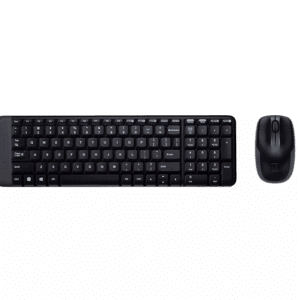
Check for correct branding, serial numbers, and original packaging. Ask Trade Partners to provide close-up photos. For models like the Logitech MK220, confirm the Logitech logo, unique product code, and examine build quality closely.
Do all wireless mice work with any computer?
No. Some require specific drivers, operating systems, or types of USB receivers. Always check compatibility before buying, especially for combos or advanced models such as the Logitech MK950.
Ready to move?
Ready to upgrade your wireless mouse? Browse our latest models or request a part for expert sourcing.
Live products related to this guide
Prices, stock and condition are read from the current WooCommerce catalogue.

Use the guide, then verify the exact part
Browse the live catalogue first. Send a detailed request when the exact match is not listed.
Related parts intelligence guides

Brake Booster Buying Guide for South African Vehicles – Identification, Fitment & Inspection
Identify and inspect brake boosters for South African cars and find the right part with fitment tips and live product links from…

Car Air Vents Buying Guide for South African Vehicle Owners and Workshops
Understand the importance of car air vents, how to confirm fitment, inspect condition, and practical buying tips for South African vehicles from…

Bulb Holder Parts in South Africa — Identification, Fitment & Buying Tips
Find out how to identify and fit the right bulb holder parts in South Africa with practical tips and links to live…

Accessories Parts in South Africa — Practical Buying Guide for Vehicle Owners and Workshops
A useful guide for South African drivers and workshops on vehicle accessories — how to identify, inspect, and buy from trusted local…

Comprehensive Fuel Filter Guide for South African Vehicle Owners and Workshops
A detailed guide on fuel filters, covering their function, identification, fitment, and maintenance for South African vehicles.

Fuel Cap Buying Guide for South African Vehicle Owners and Workshops
A practical guide for identifying and purchasing the correct fuel cap in South Africa to prevent contamination and check engine errors.


